How do turn a Figma design into a Blutui Project?
Learn how to convert your Figma designs into fully functional Blutui projects.
Introduction
Transforming a static Figma mockup into a live, data-driven Blutui site used to require hours of manual translation. With the Blutui MCP, that gap has effectively disappeared. By connecting your design environment directly to your development tools, you can now move from a Figma frame to a production-ready Blutui project with unprecedented speed.
This workflow isn't just about copying the mockup and generating code, it’s about using AI to intelligently map your Figma layers to Blutui Collections, Canopy, forms, pages, layouts and so on. By the end of this guide, you’ll know how to orchestrate multiple MCP servers to turn visual components into functional, manageable code.
Prerequisites
Before you begin, ensure you have the following set up:
- A Figma account with a design file: A project file with clearly defined layers (ideally using Auto Layout for better results).
- Figma MCP server: setup and configured.
- Blutui MCP server: setup and configured. Learn more about setting up Blutui MCP here.
- MCP-Compatible AI Assistant: An AI coding assistant that supports MCP integration (e.g., Cursor, Claude Code, VS Code etc).
Getting Started
To follow this guide, we will use the Burgertorium starter project. Built on the tailwind-js Canvas. You can find Burgertorium in the Blutui starter project GitHub repository.
We will be using a Figma design to add a new "Get on the Burger List" page, featuring an optimized image, editable Canopy text fields, and a functional Blutui form.
-
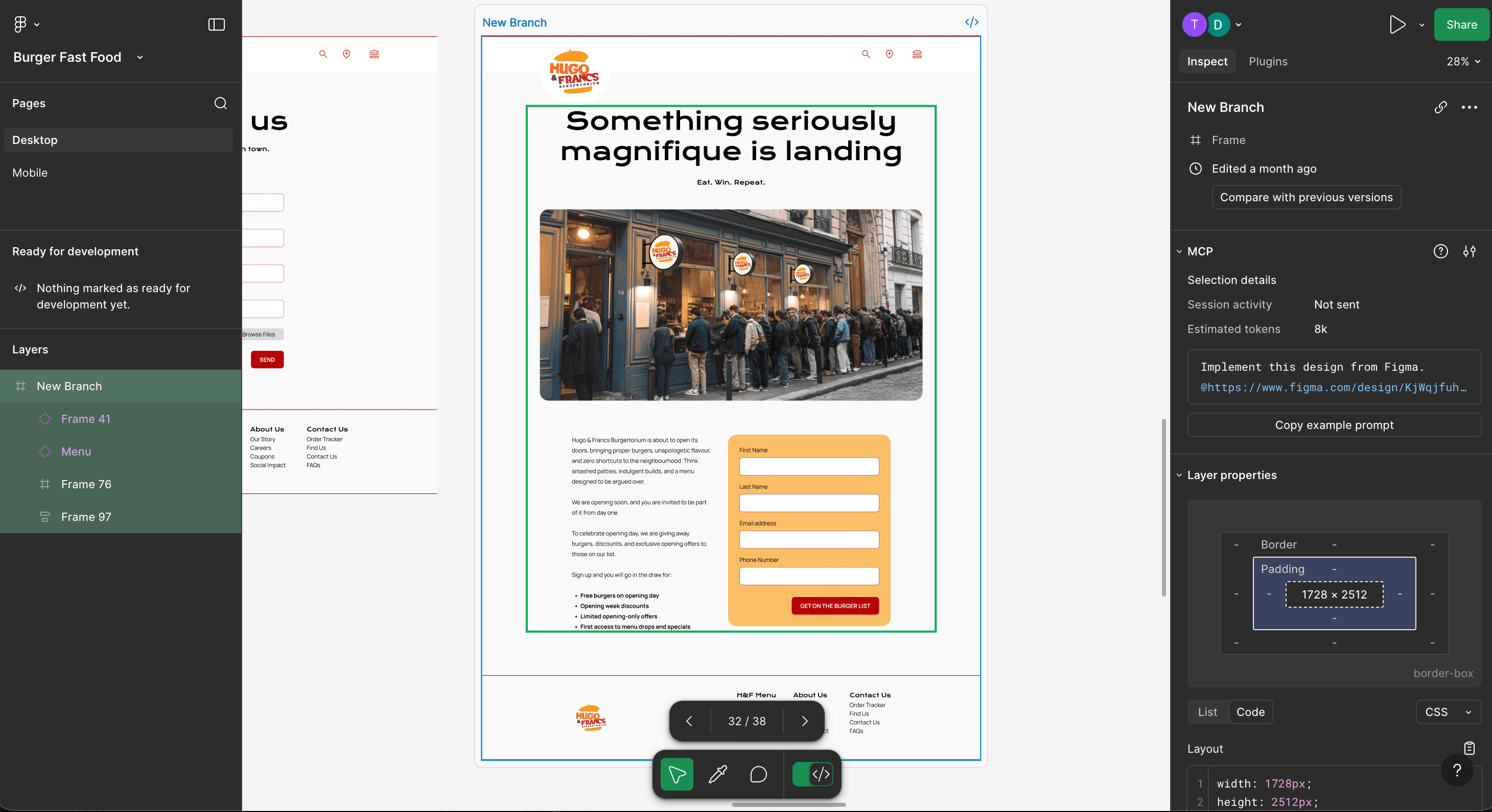
Open your Figma design file
Open the Figma file containing the design for the "Get on the Burger List" page and select the page.
-
Start the Figma & Blutui MCP server
Ensure your Figma & Blutui MCP servers are running and connected to your AI assistant. This will allow the assistant to access the design data and the Blutui project.
Below is an example of how that would look like on VS Code
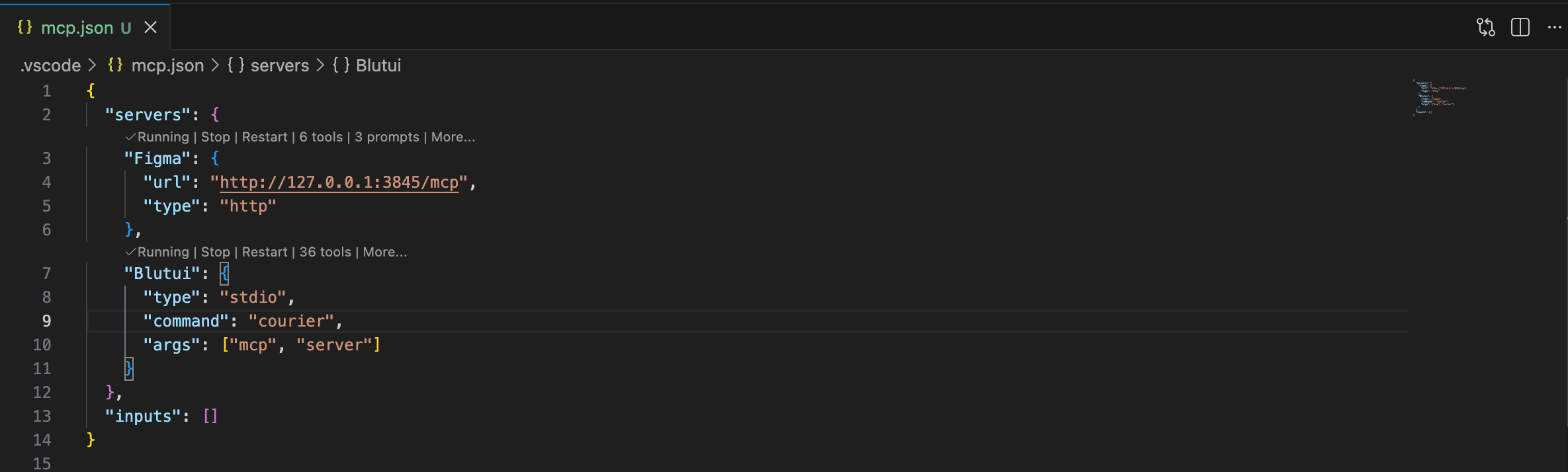
Depending on your preferred editor, your interface may vary from the screenshot above, which illustrates the workflow in VS Code.
-
Initiate the design-to-code process
Run a prompt in your AI assistant to start the conversion process. Here’s an example prompt you can use:
Create this page called "Get on the Burger List" from the selected Figma design using Blutui Canopy elements. Generate the page within the Blutui CMS, including placeholder SEO metadata. Finally, build the form using the Blutui form system. -
Review and refine the generated code
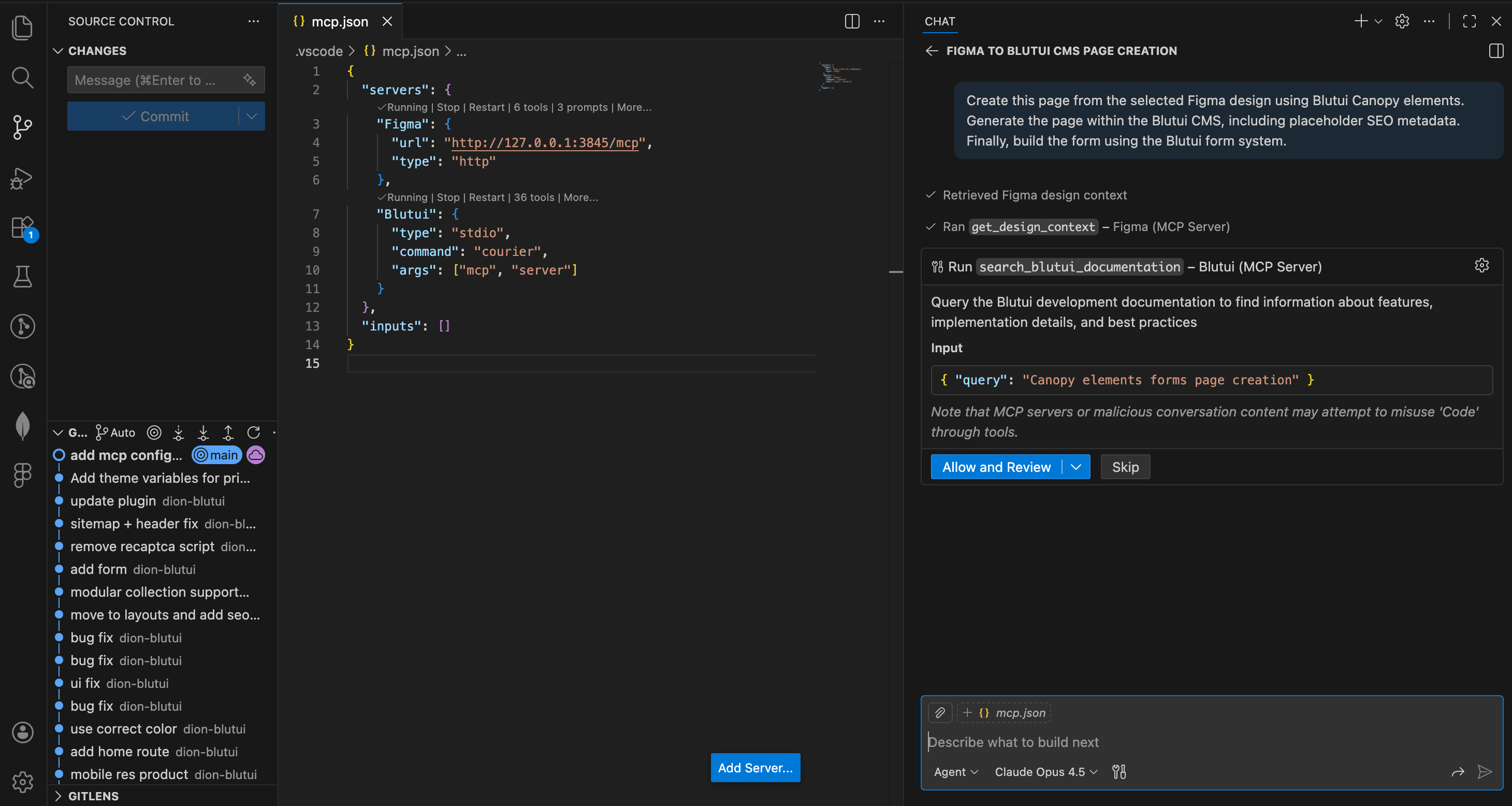
The MCP servers will ask you for approval to run the necessary tools to create Collections, Forms, Pages, and other components in your Blutui project. Review the proposed changes carefully. Approve the actions to let the AI assistant proceed with generating the code.
Listed below are some of the tools that will be used during this process:
Documentation tool call
Figma screenshot tool call
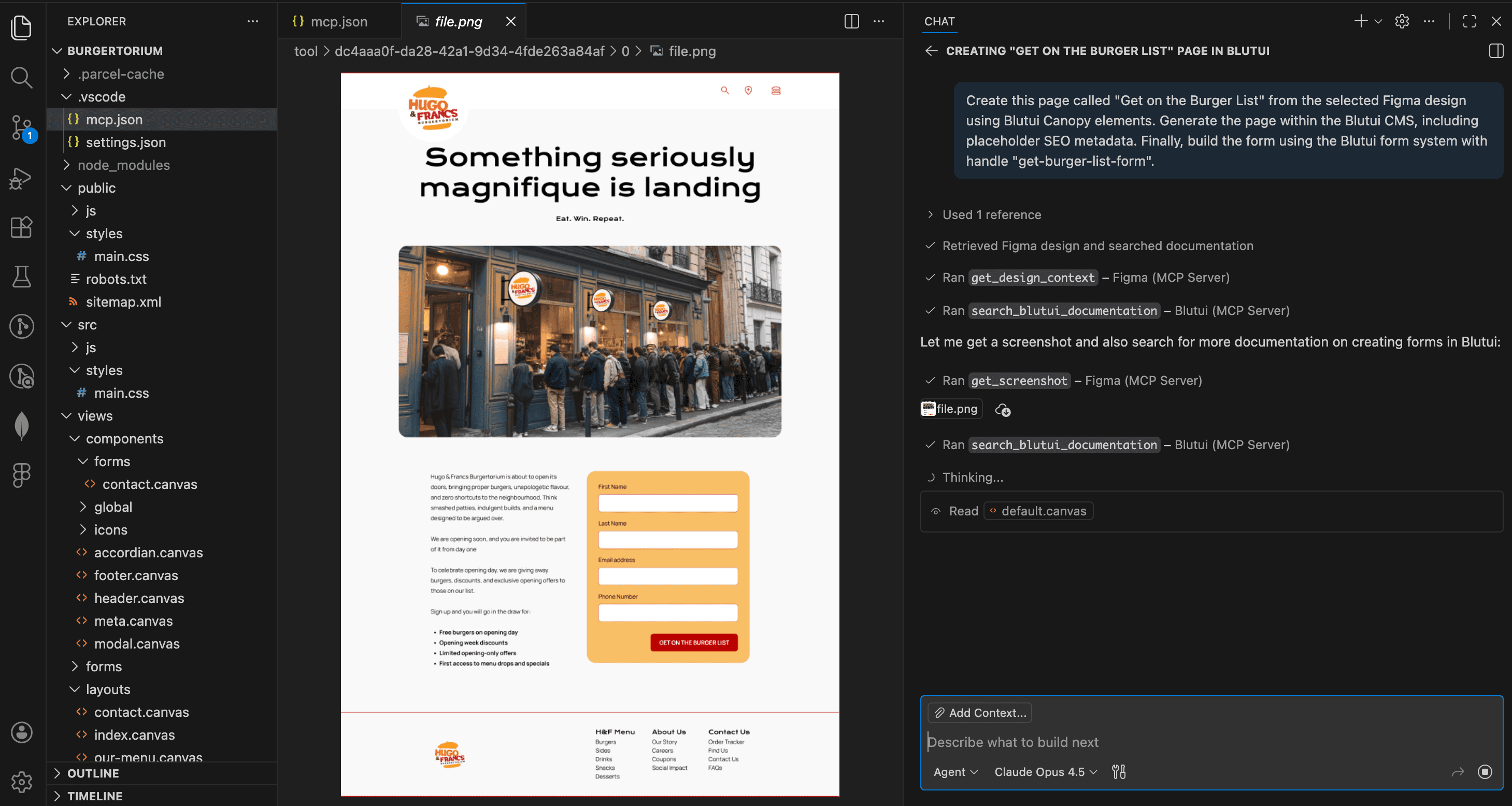
Blutui code generation
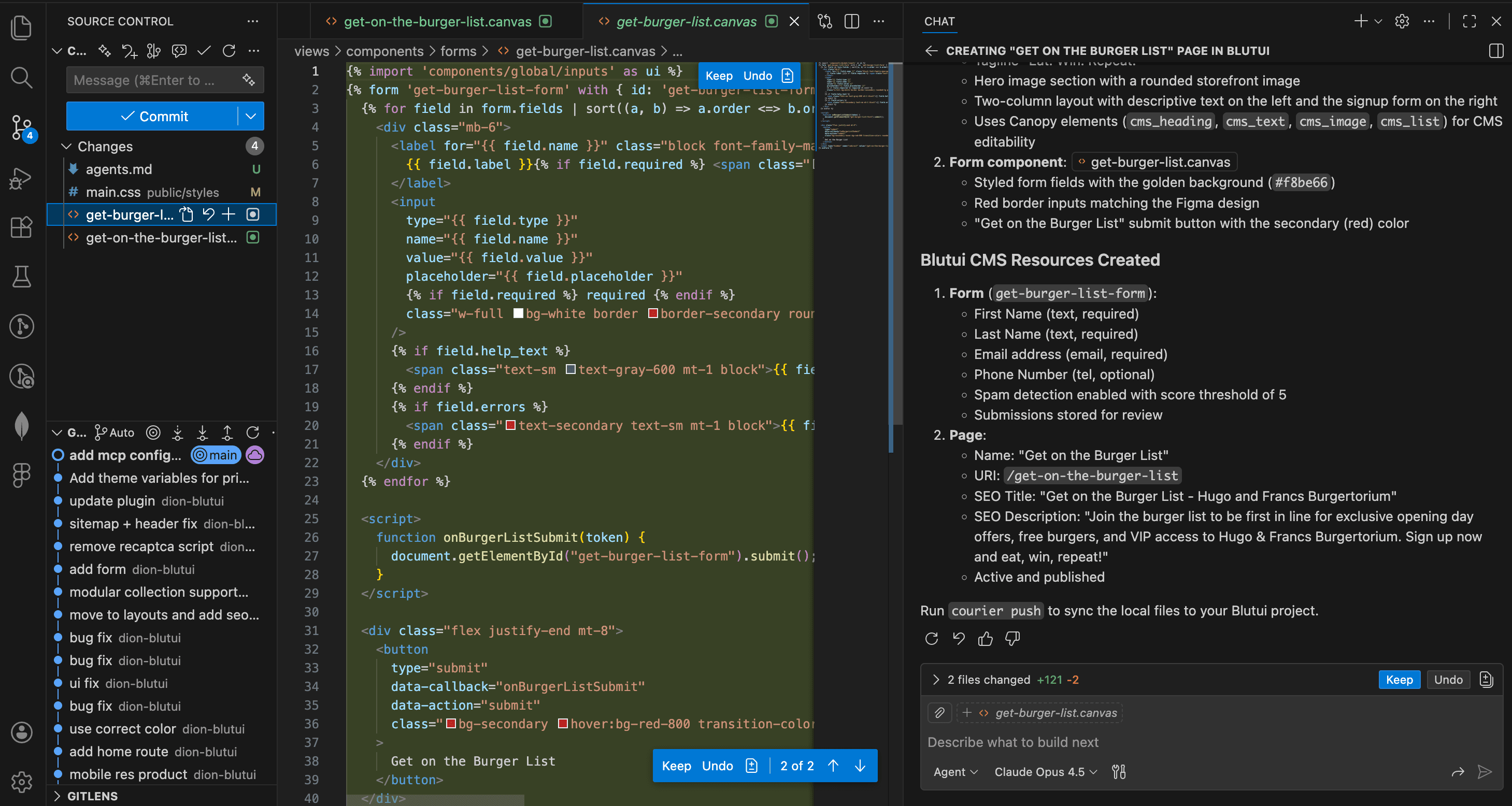
-
Test the new page in your Blutui project
Once the code generation is complete, run your Blutui project locally to test the new "Get on the Burger List" page. Ensure that all elements are functioning as expected, including the form submission and Canopy editable fields.
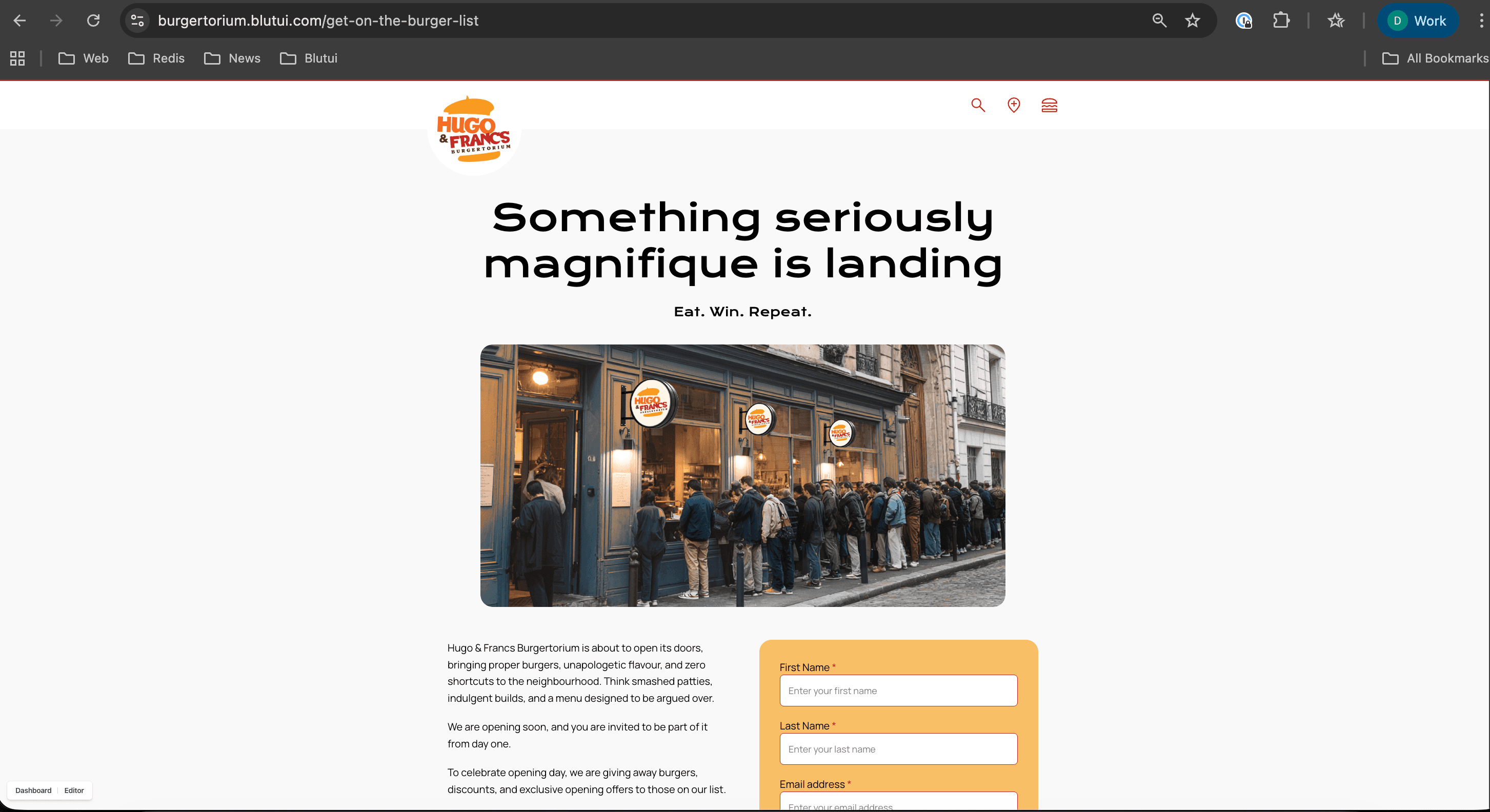
If everything looks good, you can proceed to push you changes via
courier push.
Conclusion
By leveraging the power of MCP servers and AI assistants, you can significantly streamline the process of converting Figma designs into fully functional Blutui projects. This approach not only saves time but also ensures that your designs are accurately translated into code, allowing for rapid development and iteration.
Always ensure AI-generated code is safe to use. AI can make mistakes, so it is essential to review and test all code before deploying it to production.