AI Assisted Development
Learn how to start building projects with AI assistance in Blutui
Introduction
The rise of AI coding assistants such as Claude Code, OpenCode, Cursor, and GitHub Copilot has transformed the modern development workflow. These tools are incredibly effective at building components, complex forms, and even entire pages, However, their performance is directly tied to their understanding of your project. To get the most out of AI on the Blutui platform, these assistants must be guided to understand not only your specific codebase but also the unique syntax and features that power the Blutui ecosystem.
Why Blutui for AI Development
Blutui MCP bridges the gap between AI coding agents and your Blutui application. As a dedicated Model Context Protocol (MCP) server, it provides AI agents with deep, real-time insight into your project’s architecture.
Equipped with 36 specialized tools, Blutui MCP enables your assistant to build pages, create collections, generate forms and much more with precision.
Blutui MCP
Installation & Setup
To begin using Blutui MCP, you must first ensure your local environment is running the latest version of Courier.
-
Upgrade Courier
Blutui MCP requires the newest features bundled with the latest Courier release. Depending on your operating system, use the following commands to upgrade:
brew upgrade --cask courierFor more detailed instructions on platform-specific requirements, visit the Courier Getting Started Guide.
-
Configure the MCP Server
Once Courier is updated, you need to register the Blutui MCP server with your AI editor (such as Cursor or VS Code).
Create or open your
mcp.jsonfile and include the following configuration:{ "servers": { "Blutui": { "type": "stdio", "command": "courier", "args": ["mcp", "server"] } } }After saving the configuration, start your MCP server.
Depending on your preferred editor, the mcp.json configuration file is typically located within a hidden directory in your project root, such as
.vscode/,.cursor/, or similar, depending on the tool you are using. -
Verify Connection
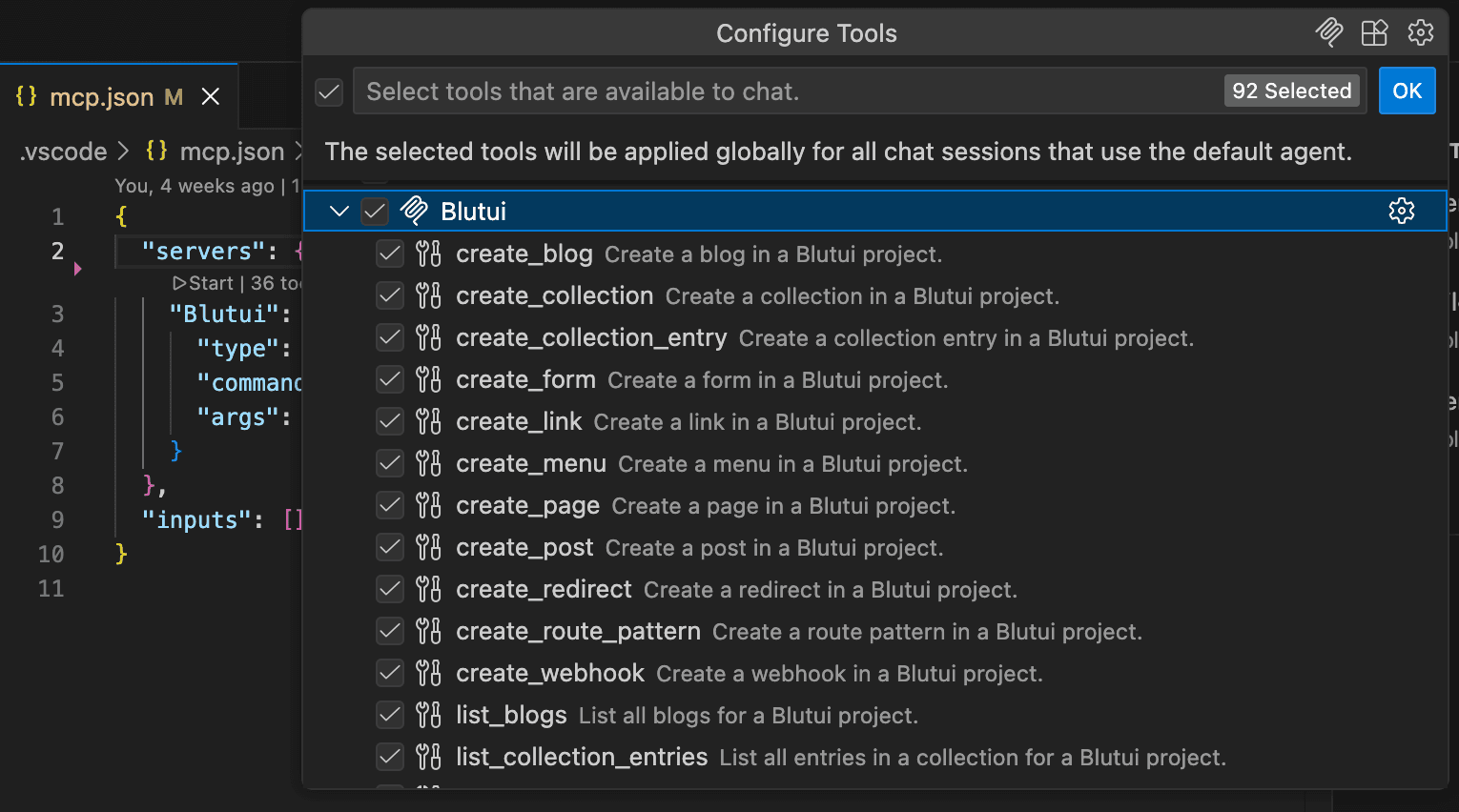 Your assistant will now have access to the tools designed to help you build and manage your Blutui application directly from your chat interface.
Conclusion
Now that Blutui MCP is configured, you can connect it with servers from other providers to build faster. The real power of MCP lies in combining tools, for instance, connecting a Figma MCP with the Blutui MCP allows you to build a live site directly from a design file.
Last updated on